No TV? No Problem! How to Use a Computer Monitor as a TV
Introduction
Many people own a computer monitor but do not have a TV, or simply want to reuse their monitor instead of buying new equipment.
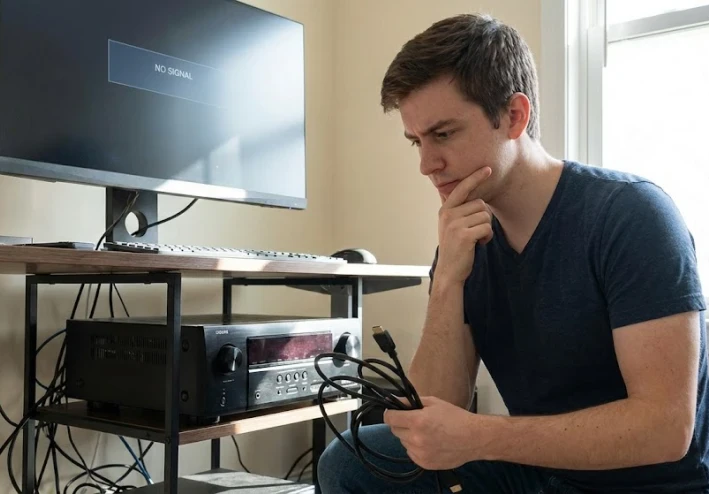
Turning a computer monitor into a TV may sound easy, but in practice it can lead to problems such as a black screen, sound without picture, image distortion, or signal dropouts.
In this article, we explain the correct way to connect a satellite receiver to a computer monitor, highlight the most common technical issues, and provide clear
solutions to ensure stable and reliable performance
This article explains
How to turn a computer monitor into a TV
The most common problems you may face
Practical and reliable solutions
First: Ways to Connect a Receiver to a Computer Monitor
HDMI Connection (Best Option)
If your computer monitor has an HDMI port:
Connect the receiver to the monitor using an HDMI cable.
This method delivers both video and audio with good quality.
HDMI to VGA Converter (For Older Monitors)
If the monitor is old and does not have HDMI:
Use an HDMI to VGA converter (not just a cable).
The converter changes the digital signal to work with older monitors.
VGA carries video only, so you’ll need external speakers for sound.
⚠️ Important note:
A simple HDMI-to-VGA cable will not work without a converter.
Second: Common Problems and Their Solutions
. Sound but No Picture
This is one of the most common issues.
Possible causes:
The receiver resolution is higher than what the monitor supports.
The refresh rate is incompatible.
Solutions:
Change the receiver resolution to 720p or 576p.
If there is no picture at all, connect the receiver to a TV first, adjust the resolution, then reconnect it to the monitor.
. Completely Black Screen
No image, no “No Signal” message.
Possible causes:
The monitor receives the signal but cannot display it.
Very common with older computer monitors.
Solutions:
Lower the receiver resolution to the minimum supported setting.
Use an HDMI to VGA converter if the monitor does not fully support HDMI from receivers.
. Image Not Fitting the Screen
The picture appears stretched or has black borders.
Possible causes:
Aspect ratio mismatch between the receiver and the monitor.
Solutions:
In the monitor settings, select:
Aspect Ratio: 16:9 or Auto
In the receiver settings, set Screen Scale to 100%.
. No Sound
Usually happens when using VGA.
Possible causes:
VGA does not transmit audio.
Solutions:
Use external speakers.
Or use a converter that includes an audio output
Third: Recommended Settings
For Modern Monitors (HDMI)
Resolution: 1080p or 720p
Refresh rate: 60Hz
For Older Monitors
Resolution: 720p or 576p
Using a converter is strongly recommended.
Helpful Tips Before You Start
Always change resolutions gradually, not directly to the highest option.
Keep a TV nearby in case you need to reset display settings.
Use a good-quality HDMI cable.
Remember: computer monitors are not originally designed for satellite receivers, so some limitations are normal
Conclusion
Connecting a satellite receiver to a computer monitor is possible and effective, but it requires correct settings and compatible hardware
Most issues are caused by unsupported resolution or refresh rate, and they can usually be fixed by lowering the resolution or using the proper converter
.Technology isn’t always complicated—sometimes it just needs the right setup