

In this article
Why Your PC Feels Slow Lately—and Simple Tricks That Fix It Fast
Introduction: Turning Frustration Into Smooth Performance
Why Computers Lose Speed Over Time
Few things are more frustrating than opening a program, switching browser tabs, or launching a game only to watch your PC stutter and lag. Over weeks and months of everyday use, small bottlenecks pile up quietly in the background until even basic tasks feel slower than they should.
Better Speed Without Complicated Fixes
The good news is that you do not need expensive upgrades or shady "one-click booster" apps to make a noticeable difference. A few smart habits and quick system tweaks can bring back smooth responsiveness and make your computer a pleasure to use again.
1. Declutter Startup Apps and Background Clutter
How Background Programs Drain Your PC
Every time you power on your computer, several apps may launch silently in the background, competing for memory and processor time before you even open what you actually need. Over time, these background tasks eat up resources and slow down boot times.
What to Disable First
Open your system's startup settings and turn off launchers, chat tools, or update helpers you do not need immediately when turning on your PC. Keeping startup lean gives your active programs more breathing room from the very first minute.
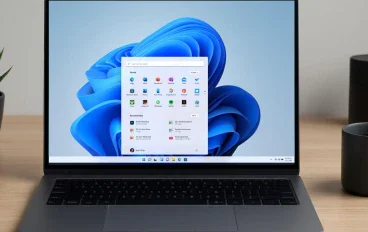
[Insert Supporting Image 1 Here in Editor]
Alt Text: Startup apps list in Windows settings showing background programs.
Caption: Disabling unneeded startup apps helps your PC boot faster and save memory.
2. Tame Your Browser Before It Tames Your RAM
The Hidden Cost of Dozens of Open Tabs
Modern browsers are fast and convenient, but leaving dozens of tabs open—alongside heavy extensions you rarely use—can quietly consume gigabytes of memory. That often causes sluggish scrolling, delayed page loads, and slowdowns across other open apps.
Simple Habits for Faster Browsing
Close tabs you are done reading, bookmark links for later instead of keeping them open indefinitely, and remove browser extensions you no longer trust or use. A cleaner browser immediately frees up resources for work, study, or gaming.
3. Keep Your Main Drive Breathing
Why a Packed System Drive Slows Everything Down
Your operating system relies on free space on the primary drive to handle temporary files, updates, and smooth virtual memory operations. When that drive gets nearly full, the whole system can feel heavy and unresponsive.
Easy Ways to Free Up Space Safely
Move large files—such as old videos, backups, project folders, or games you are not currently playing—to a secondary drive or external storage. Clear out forgotten downloads and empty the recycle bin periodically so your main drive always has room to breathe.
[Insert Supporting Image 2 Here in Editor]
Alt Text: Storage drive usage overview showing free space on a computer.
Caption: Keeping healthy free space on your main drive supports smoother daily performance.
4. Protect Airflow and Watch the Heat
Heat Is the Silent Performance Killer
When a desktop or laptop runs hot during heavy tasks like gaming, video editing, or long sessions, hardware can slow itself down automatically to prevent heat damage. Dust buildup and blocked vents make that problem much worse.
Quick Cooling Habits That Help
Place laptops on flat, hard surfaces rather than beds or blankets, keep vents clear of dust, and give your system good airflow around the case. Cooler components run more reliably and hold steady speeds longer.
[Insert Supporting Image 3 Here in Editor]
Alt Text: Laptop resting on a flat desk surface with clear ventilation.
Caption: Good airflow keeps temperatures in check during demanding sessions.
5. Build Smart Daily Habits for Peace of Mind
Shortcuts That Make Every Session Faster
Learning a handful of keyboard shortcuts saves time every single day—such as switching windows quickly, capturing part of your screen, opening task management in a flash, or browsing clipboard history when enabled. Small speed-ups add up fast when you use your PC daily.
Updates and Backups That Save You Later
Install official system and driver updates regularly to patch bugs and improve stability, and keep backups of important files on an external drive or cloud storage. Good habits protect both your PC's speed and the work you care about.
Conclusion: Small Changes, Big Everyday Difference
Make Maintenance Effortless
You do not need to overhaul your entire setup to get better performance out of your computer. Starting with just one or two of these habits—cleaning up startup apps, managing browser tabs, or freeing drive space—can noticeably improve how fast your PC feels today.
Ready for Your Next Session
Consistency is what turns quick fixes into lasting results. Try these steps on your own machine, and see how much smoother everyday work, study, and play become
Keep up with Yassin Waleed
Choose site notifications, email, or both. Guests can subscribe by email without an account.
Support the writer
Enjoyed it? Send Yassin Waleed a gift
Your gift reaches the writer directly and becomes earnings in their wallet.
Be the first to support this article with a gift 💝
Report this article
Tell our review team about a problem with this content. Your details will not be shown to the author or other readers.
Your report could not be sent. Please try again later.
Sign in to report an article







Discussion
comments (0)
Share a perspective. Start a thoughtful conversation.
please login to be able to comment