


في هذا المقال
How to Convert PDF to Word Without Losing Formatting
Need to edit a PDF but don't know how to turn it into an editable Word document? Converting a PDF to Word is one of the easiest ways to edit text, update information, change formatting, or reuse content from an existing document.
However, simply converting a PDF does not always mean the Word file will look exactly the same. Fonts can change, tables may move, images can shift, and scanned documents may require OCR before their text becomes editable.
This guide explains how to convert PDF to Word without losing formatting, including methods for Windows, Mac, Android, iPhone, and online conversion. You'll also learn how to convert scanned PDFs and fix common formatting problems after conversion.
Quick Answer: What Is the Easiest Way to Convert PDF to Word?
The easiest method depends on the PDF you have.
If you already have Microsoft Word, you can open the PDF directly in Word and let it convert the document into an editable file.
You can also use an online PDF-to-Word converter when you don't want to install software.
For scanned PDFs, you'll generally need OCR (Optical Character Recognition) so the software can recognize text contained in the scanned pages.
For the best results, always review the converted Word document before using or sharing it.
Why Convert a PDF to Word?
PDF files are excellent for sharing documents because they are designed to preserve a document's appearance. However, editing a PDF can sometimes be less convenient than editing a Word document.
Converting PDF to Word can be useful when you need to:
Edit existing text
Correct spelling mistakes
Change headings
Update information
Modify tables
Add or remove paragraphs
Reformat a document
Reuse content from a PDF
Add comments or additional information
The main advantage is that a Word document is designed for editing, while a PDF is primarily designed to preserve a fixed layout.
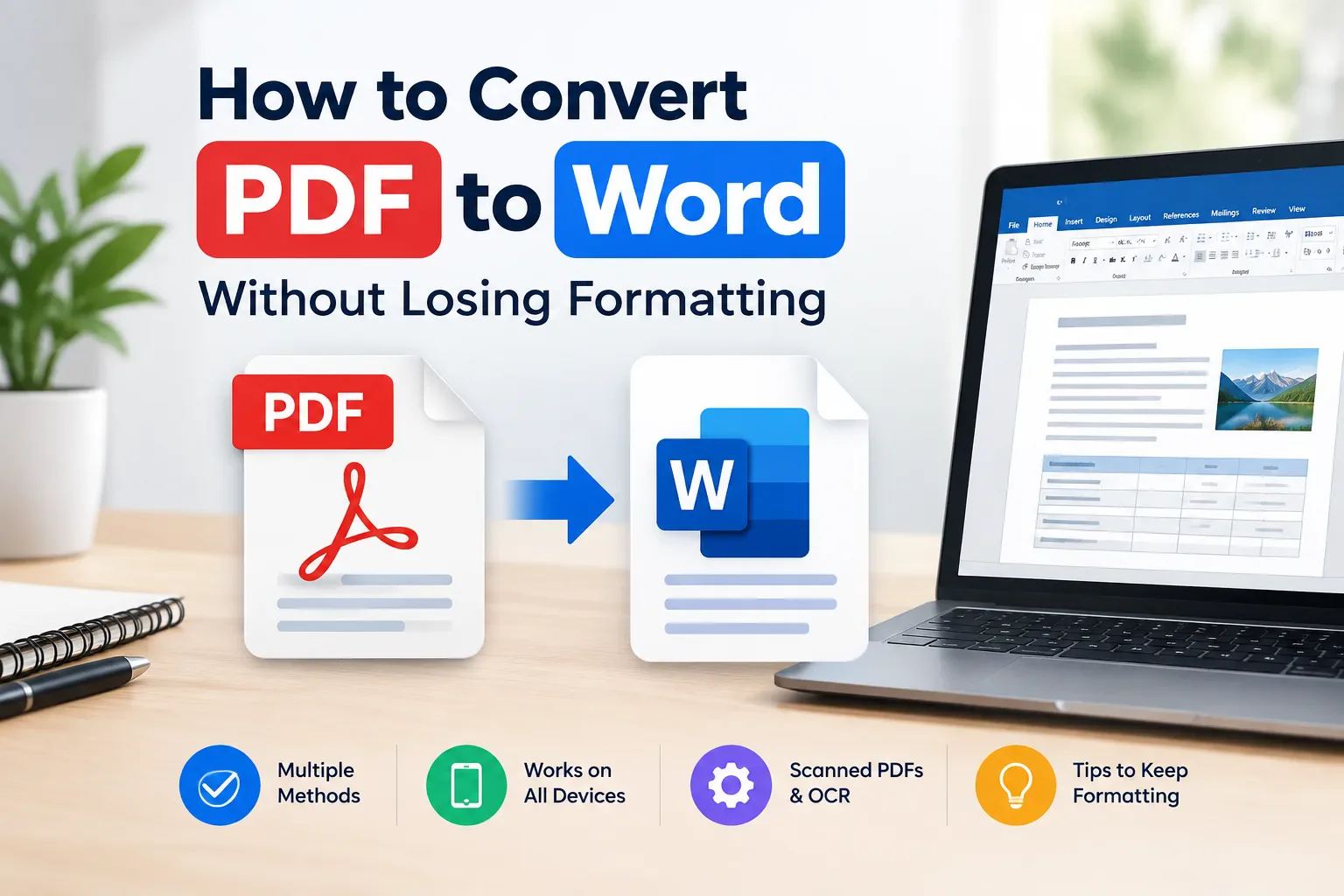
How to Convert PDF to Word Using Microsoft Word
If Microsoft Word is already installed on your computer, you may not need another application.
Microsoft Word can open many PDF files and create an editable Word version.
Step 1: Open Microsoft Word
Start Microsoft Word on your Windows PC or Mac.
Step 2: Open the PDF
Select File > Open and choose the PDF you want to convert.
Step 3: Confirm the Conversion
Word will display a message explaining that it will convert the PDF into an editable Word document.
Select OK to continue.
Word creates an editable copy of the PDF while keeping the original PDF unchanged. Microsoft explains that this process works best with PDFs that are mostly text.
Step 4: Review the Document
After the conversion finishes, check:
Text
Fonts
Headings
Tables
Images
Page breaks
Paragraph spacing
Lists
If the document looks correct, select File > Save As and save it as a Word document, preferably in DOCX format.
How to Convert PDF to Word Online
If you don't have Microsoft Word installed, an online PDF-to-Word converter can be a convenient alternative.
The general process is:
Open a reputable PDF-to-Word conversion website.
Upload your PDF.
Choose Word or DOCX as the output format.
Start the conversion.
Download the converted document.
Open the DOCX file and check the formatting.
Adobe provides an online PDF-to-Word conversion tool that converts PDF files into editable Word documents.
Is Online PDF Conversion Safe?
Be careful when uploading sensitive documents to online services.
Avoid uploading files containing highly confidential information, passwords, financial information, private identification documents, or other sensitive data unless you fully understand the service's privacy and file-handling policies.
For sensitive documents, an offline conversion method can be preferable.
How to Convert PDF to Word on Windows
Windows users have several options.
Option 1: Microsoft Word
Open Word, select the PDF, and allow Word to convert it.
Option 2: Adobe Acrobat
Adobe Acrobat provides a dedicated PDF-to-Word conversion feature. In Acrobat, you can select the conversion option, choose Microsoft Word, select the desired Word format, and save the resulting document.
Option 3: Online Converter
You can also use an online converter when you need a quick conversion and the document does not contain sensitive information.
How to Convert PDF to Word on Mac
Mac users can also use Microsoft Word if it is installed.
Open Word, choose the PDF from the Open menu, allow Word to convert it, then review and save the resulting document.
Another option is Adobe Acrobat or a reputable online PDF conversion service.
The important part is to compare the converted file with the original PDF before making further edits.
How to Convert PDF to Word on Android
You can convert PDF files to Word from an Android phone using a compatible PDF or document application that supports PDF-to-DOCX conversion.
The general process is:
Open the PDF application.
Select the PDF file.
Choose the Convert or Export option.
Select Word or DOCX.
Wait for the conversion to finish.
Open the Word document and check the result.
The exact buttons may vary depending on the application and its version.
If you don't want to install another application, an online PDF-to-Word converter can also work through your phone's browser.
How to Convert PDF to Word on iPhone
On an iPhone, you can use a PDF application that supports Word conversion or an online converter through Safari.
The typical process is:
Open your PDF.
Choose the share or export option.
Select a PDF conversion tool that supports Word.
Choose DOCX.
Save the resulting Word document to your preferred location.
After conversion, open the file and check the layout before editing it.
How to Convert a Scanned PDF to Word
A scanned PDF is different from a normal text-based PDF.
If you scan a printed page, the PDF may contain an image of the page rather than actual text. This means a normal PDF conversion may not produce editable text.
This is where OCR becomes important.
OCR stands for Optical Character Recognition. It analyzes the image and attempts to identify the characters and words contained on the page.
The basic process is:
Scanned PDF → OCR → Recognized text → Word document
OCR can save significant time when working with scanned documents, but it isn't perfect.
You should carefully check:
Numbers
Names
Special characters
Tables
Headings
Unusual fonts
Mathematical symbols
Microsoft also notes that converting scanned PDFs can produce differences from the original document's layout.
How to Convert PDF to Word Without Losing Formatting
If keeping the original appearance is important, follow these tips.
Use a Text-Based PDF When Possible
A PDF containing selectable text is usually easier to convert than a document made entirely from scanned images.
Check the Fonts
If the original PDF uses a font that isn't available on your computer, Word may replace it with another font.
Check Tables
Tables can change during conversion, especially when they contain merged cells, multiple columns, or complex formatting.
Check Images
Images may move or change size after conversion.
Check Page Breaks
The Word version may have different line breaks and page breaks from the PDF.
Microsoft warns that converted PDF documents may not maintain perfect page-to-page correspondence.
Avoid Editing Immediately
Before changing the document, compare the converted Word file with the original PDF.
This makes it easier to identify conversion problems before you start editing.
Why Does My Word Document Look Different From the PDF?
This is usually caused by differences between the PDF and Word file formats.
PDF files are designed around a fixed page layout. Word documents use editable elements such as paragraphs, tables, images, and text wrapping.
When Word converts a PDF, it has to reconstruct those elements.
That's why you may notice:
Different line breaks
Changed page breaks
Different font sizes
Moved images
Altered tables
Different spacing
Simple text-based PDFs usually convert more easily, while complex layouts can require manual adjustments.
Can You Convert PDF to Word for Free?
Yes.
Depending on the method you choose, you may be able to convert a PDF to Word without paying for a dedicated converter.
Microsoft Word can open and convert many PDF files, while Adobe offers an online PDF-to-Word conversion option.
However, some advanced conversion features may require paid software or a subscription.
Always check the final document instead of assuming that a free converter will preserve every element perfectly.
Can You Convert PDF to Word Without Software?
Yes.
An online PDF-to-Word converter can work directly through your browser, meaning you don't necessarily need to install desktop software.
This can be particularly convenient when you're using:
Android
iPhone
Chromebook
A shared computer
A computer without PDF editing software
For private or sensitive documents, however, consider using an offline method instead.
How to Fix Formatting Problems After PDF Conversion
If the Word file doesn't look like the original PDF, don't immediately convert it again.
Try fixing the specific problem.
If Text Is Misaligned
Select the affected paragraphs and check alignment, spacing, and indentation.
If Images Moved
Change the image's text-wrapping settings and reposition it.
If Tables Are Broken
Check the table structure and manually adjust rows, columns, or merged cells.
If Fonts Changed
Install the required font if you have permission to do so, or choose a similar font available on your computer.
If Pages Are Different
Review paragraph spacing, margins, font size, and page-break settings.
PDF to Word vs. Copy and Paste
For a short PDF containing simple text, copying and pasting may be faster.
For a long document, however, converting the entire PDF to Word can save considerable time.
Conversion is particularly useful when the document contains:
Multiple pages
Headings
Tables
Images
Lists
Structured paragraphs
Frequently Asked Questions
Can I convert PDF to Word for free?
Yes. Microsoft Word can convert many PDF files, and online services may also provide free conversion options. The available features and limitations depend on the tool.
Can I convert a scanned PDF to Word?
Yes, but scanned documents generally require OCR to recognize the text before it can be edited properly.
How do I convert PDF to Word on Android?
You can use a PDF application with Word conversion support or an online PDF-to-Word converter through your mobile browser.
How do I convert PDF to Word on iPhone?
You can use a compatible PDF application or an online conversion service through Safari.
Why does my Word document look different after conversion?
PDF and Word use different document structures. Complex layouts, fonts, tables, images, and page breaks may change during conversion.
What is the best format to save the converted document?
For most modern Microsoft Word workflows, DOCX is the standard choice.
Will converting a PDF delete the original file?
Normally, opening or converting a PDF creates another document and does not modify the original PDF. However, always keep a backup of important files.
Final Thoughts
Converting PDF to Word is usually straightforward, but getting a perfectly matching layout depends on the original PDF.
For text-based PDFs, Microsoft Word can be a simple solution. Adobe Acrobat provides dedicated PDF-to-Word conversion, while online converters can be useful when you need a quick browser-based option.
If the PDF is scanned, OCR is often the key step because the pages may contain images rather than editable text.
Whatever method you choose, always compare the converted Word document with the original PDF and check tables, images, fonts, page breaks, and important information before using the final file.
تابع جديد Social media trends
اختر إشعارات الموقع أو البريد أو الاثنين. الزائر يقدر يشترك ببريده دون تسجيل حساب.
الإبلاغ عن المقال
لو لاحظت مشكلة في المحتوى، أرسلها لفريق المراجعة. لن تظهر بياناتك لكاتب المقال أو للقراء.
تعذّر إرسال البلاغ الآن. حاول مرة أخرى لاحقًا.
سجّل الدخول لإرسال بلاغ






النقاش
التعليقات (0)
فكرة تضيفها، أو سؤال يفتح حوارًا.
الرجاء تسجيل الدخول لتتمكن من التعليق