
في هذا المقال
Pomodoro Session App – User Manual
Version 0.1 (Free Edition Beta)
Overview
The Pomodoro Session App is a desktop productivity tool designed to help users manage time using the Pomodoro technique. It allows users to alternate between focused work sessions and scheduled breaks in order to improve concentration and reduce fatigue.
Main Interface
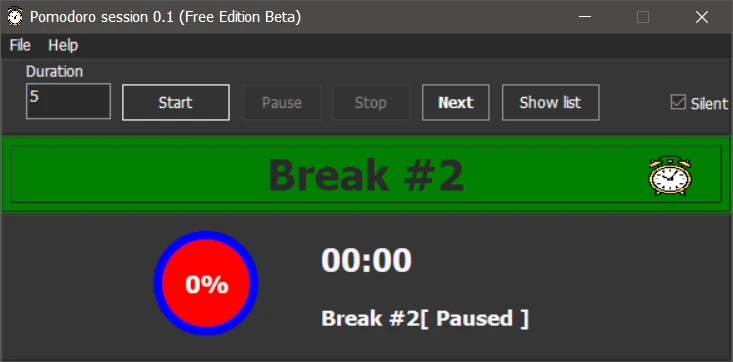
The main interface is the primary workspace of the application where all session controls are available. The duration field allows the user to enter the number of minutes for the session. Once a value is entered, pressing the Start button begins the countdown.
The Pause button temporarily stops the timer and allows it to be resumed later, while the Stop button completely ends the current part of the session. The Next button skips the current part of the session and moves to the next one in the sequence. The Show list button displays the session list if enabled. A Silent option is available to disable ticking sound.
The center of the screen displays the current session type such as a work part or a break part. It also shows the remaining time in minutes and seconds along with the session status, for example whether it is running or paused. A circular progress indicator shows the percentage of completion visually.
Menu Options
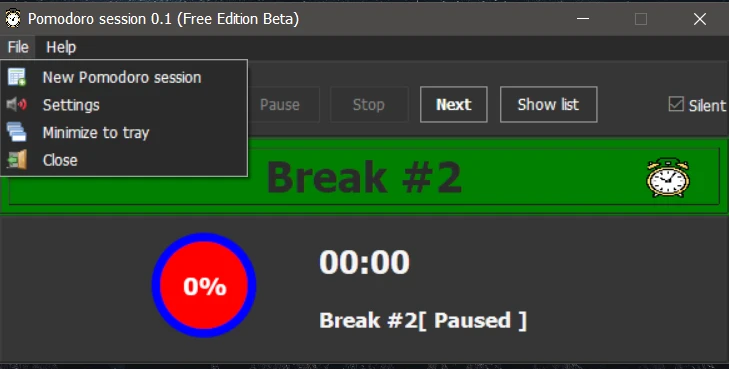
The application menu provides quick access to important functions. The New Pomodoro Session option starts a completely new session cycle. The Settings option opens the configuration window where the user can adjust preferences.
The Minimize to tray option hides the application in the system tray while keeping it running in the background. The Close option exits the application completely. This menu allows the user to manage the application without interrupting their workflow.
Settings Window
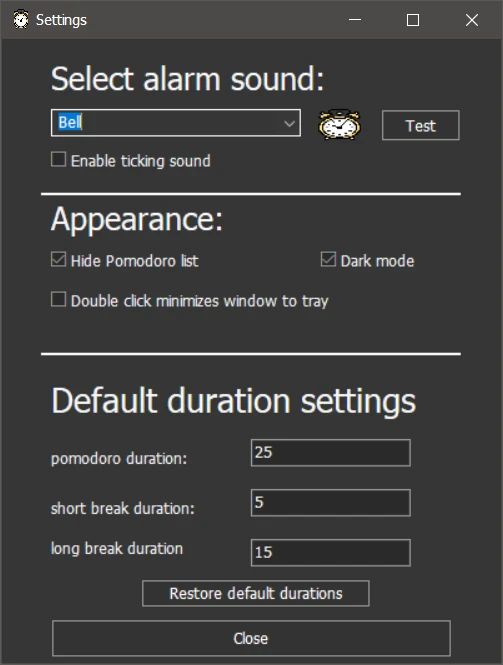
The settings window allows customization of sounds, appearance, and default session durations. The alarm section allows the user to select a notification sound that plays when a session ends. A Test button is available to preview the selected sound. There is also an option to enable a ticking sound during the countdown.
The appearance section allows the user to enable dark mode, hide the Pomodoro list, and enable minimizing the application to the system tray by double-clicking the window.
The default duration section allows the user to define how long each type of session lasts. The Pomodoro duration is typically set to twenty-five minutes, the short break to five minutes, and the long break to fifteen minutes. These values can be modified as needed, and a restore option is available to return them to their default values.
Using the Application
To use the application, the user selects the part of session from the Pomodoro list or enters a duration and presses the Start button. The timer begins counting down immediately, allowing the user to focus on their task. When the session ends, a ticking sound is played unless silent check box mode is enabled.
The application then automatically moves to the next session, usually a break. After several work sessions, a longer break is provided. This repeating cycle helps maintain productivity and balance between work and rest.
Notifications
The application uses sound notifications to indicate when a session ends. These sounds can be customized in the settings window.
Troubleshooting
If the timer does not start, the user should ensure that a valid duration greater than zero has been entered. If the application appears to be missing, it may have been minimized to the system tray instead of being closed.
Notes
This version of the application is a beta release, which means some features may be limited or subject to change. Despite this, the application provides a reliable and simple way to manage time using the Pomodoro technique.
Join Facebook group for more updates and useful tools
Download
Win 64 bit
Keywords:
Pomodoro
free pomodoro
free time organize
time management
pomodoro session
pomodoro technique
تابع جديد Ahmad Muhammed
اختر إشعارات الموقع أو البريد أو الاثنين. الزائر يقدر يشترك ببريده دون تسجيل حساب.
الإبلاغ عن المقال
لو لاحظت مشكلة في المحتوى، أرسلها لفريق المراجعة. لن تظهر بياناتك لكاتب المقال أو للقراء.
تعذّر إرسال البلاغ الآن. حاول مرة أخرى لاحقًا.
سجّل الدخول لإرسال بلاغ





النقاش
التعليقات (0)
فكرة تضيفها، أو سؤال يفتح حوارًا.
الرجاء تسجيل الدخول لتتمكن من التعليق