
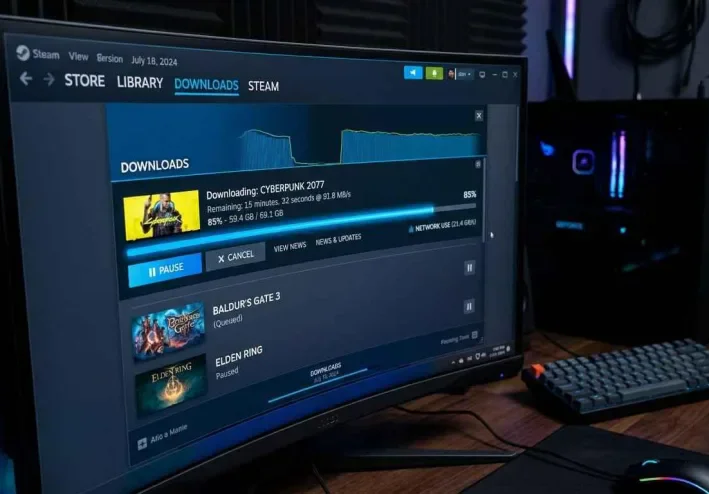
In this article
How to Fix Slow Downloads on Steam: 7 Ways to Improve Download Speed
Are your Steam game downloads taking too long even though your internet connection seems fast? Does a large game take hours to download, or does your download speed keep rising and dropping unexpectedly?
Slow Steam downloads can have several causes, including download region settings, internet connection issues, hard drive performance, or Steam processing game files during installation.
In this guide, we will explore seven practical ways to troubleshoot slow Steam downloads, explain the difference between internet speed and download speed, and help you identify what might be causing the problem.
Why Are Steam Game Downloads So Slow?
Before trying different fixes, it is important to understand that slow downloads do not always mean your internet connection is faulty.
Some common causes include:
A busy or unsuitable Steam download server.
A download speed limit enabled in Steam settings.
Other devices or applications using your internet connection.
A slow hard drive or a disk that is busy processing game files.
Temporary internet connection or router problems.
The best approach is to test each solution separately instead of changing multiple settings at once.
1. Check the Difference Between Internet Speed and Download Speed
One common mistake is comparing your advertised internet speed with the download speed shown in Steam without checking the units.
Internet providers usually advertise speeds in megabits per second (Mbps), while Steam may display download speeds in megabytes per second (MB/s).
One megabyte equals eight megabits, so 16 Mbps theoretically equals approximately 2 MB/s before accounting for connection overhead and other factors.
For example, if your internet connection provides 16 Mbps, the theoretical maximum download speed is approximately 2 MB/s, not 16 MB/s.
Your actual download speed may be lower depending on network conditions, server performance, and your computer.
What should you do?
Convert your internet speed into the same unit used by Steam before deciding whether your download speed is unusually slow.
2. Change Your Steam Download Region
Steam uses download regions to select servers that deliver game files. If a server is experiencing heavy traffic or connection issues, trying another nearby region may improve your download speed.
Follow these steps:
Open Steam.
Click Steam in the top-left corner.
Select Settings.
Open Downloads.
Find the Download Region option.
Try another nearby region and test your download speed again.
The closest region is not necessarily the fastest one, so compare the results and keep the setting that works best for your connection.
For more information, visit Steam Support: Slow Downloads.
3. Check Whether Steam Is Limiting Your Download Speed
Steam may have a download speed limit enabled from a previous configuration.
To check it:
Open Steam.
Go to Settings.
Select Downloads.
Find the Limit download speed option.
Review the current setting and adjust it if necessary.
If you want Steam to use the available bandwidth, make sure an unintended speed limit is not enabled.
However, if you share your internet connection with other people, limiting download speed can help prevent game downloads from using all the available bandwidth.
Remember that increasing the limit inside Steam cannot make your internet connection faster than the speed provided by your internet service provider.
You can also check Steam Support's official troubleshooting resources.
4. Pause Other Downloads Temporarily
If several games are downloading simultaneously, or another application is updating in the background, your available internet bandwidth may be divided between them.
Try these steps:
Open the Downloads page in Steam.
Review the list of games being downloaded.
Pause downloads you do not need immediately.
Close applications that use a large amount of bandwidth.
Test the download speed with only one game downloading.
This helps you determine whether other downloads are contributing to the problem.
If other people are using the same internet connection, their activity may also affect your download speed.
5. Monitor Your Hard Drive During Downloads
Have you noticed that your download speed sometimes drops to zero and then starts increasing again?
In some cases, Steam may be processing downloaded data, unpacking files, or writing game files to your storage drive. This can cause download speed fluctuations even when your internet connection is still working.
To investigate:
Press Ctrl + Shift + Esc to open Task Manager.
Select the Performance tab.
Choose the drive where your game is being installed.
Monitor disk activity while downloading.
Check whether high disk activity coincides with drops in download speed.
If the drive remains very busy, storage performance may be contributing to the problem, especially if you use an older or slower hard drive.
Do not rely on a single reading. Monitor the drive for several minutes because Steam naturally alternates between downloading and processing game data.
6. Restart Steam and Your Router if Necessary
If your download speed was normal but suddenly became slow, try these basic troubleshooting steps:
Pause the download.
Close Steam and reopen it.
Test your internet connection using another application or website.
If the problem continues, restart your router normally.
Resume the download and monitor the results.
If only Steam is slow, the issue may be related to its download servers or application settings. If other applications are also slow, investigate your internet connection.
Avoid performing a factory reset on your router just because downloads are slow. A factory reset can erase important connection settings and is usually unnecessary for this type of problem.
7. Clear the Steam Download Cache
If downloads fail to start properly or you encounter repeated download and installation errors, clearing the download cache may help resolve certain problems.
Before proceeding, make sure you know your Steam login details because you may need to sign in again.
Follow these steps:
Open Steam.
Go to Settings.
Select Downloads.
Look for Clear Download Cache.
Confirm the action and sign in again if prompted.
Try downloading the game once more.
Clearing the download cache is not guaranteed to fix every slow download, but it can be a useful troubleshooting step for certain Steam download or installation problems.
You can consult Steam Support for additional troubleshooting guidance.
Bonus Tips: How to Save Internet Data When Downloading Games
If you have a limited monthly internet allowance, you do not necessarily need to download games at the maximum available speed.
You can limit Steam's download speed, check game sizes before downloading, and avoid downloading multiple large games at the same time.
You can also enable Metered Connection in Windows to help reduce some background data usage. However, this setting does not block every application from using the internet, and it does not reduce the actual size of game downloads.
Learn more from Microsoft's official guide: Metered connections in Windows.
Conclusion
If Steam downloads are slow, start by checking your speed units, then try changing your download region, reviewing your speed limit, and pausing other downloads.
Next, monitor your hard drive activity and test your internet connection. If download errors continue, clearing the Steam download cache may help.
Test each solution separately so you can identify the most likely cause instead of changing several settings without knowing what worked.
Question for readers: What problem do you experience when downloading games on Steam? Is your download speed always slow, or does it suddenly drop to zero and start again? Share your experience in the comments to help other gamers troubleshoot similar issues.
Keep up with عبدالرحمن السيد
Choose site notifications, email, or both. Guests can subscribe by email without an account.
Report this article
Tell our review team about a problem with this content. Your details will not be shown to the author or other readers.
Your report could not be sent. Please try again later.
Sign in to report an article






Discussion
comments (0)
Share a perspective. Start a thoughtful conversation.
please login to be able to comment