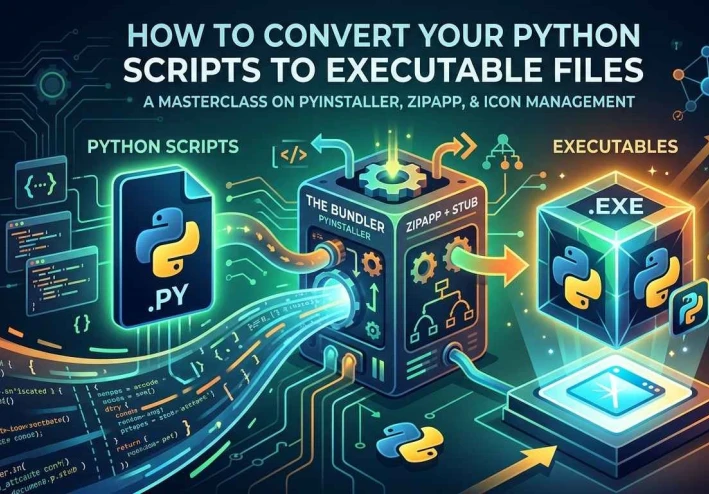
How to Convert your python scripts to executable files?
?How to Convert your python scripts to executable files
Python is an interpreted language, it doesn’t compile its code to native machine code like c, c++, rust and object pascal (Delphi, Lazarus). This means that converting your python script to executable doesn’t produce real binary executables. The key concept is about adding your python script to a binary stub, and copying or embedding a copy of the python interpreter, along with standard python library and the modules used by your script. This article will cover the following topics:
* Creating .exe files with PyInstaller.
* Creating .exe files with zipapp + EXE stubs.
* Adding icons to generated executables.
PyInstaller (the undisputed king of Python converters)
PyInstaller is an advanced bundler. It performs three primary steps to convert your script to an executable:
- Dependency Analysis: It inspects your script from the top down. It reads every
importstatement and recursively finds every file, system.dll, and library your - project needs to function.
Assembling the Core Environment: It collects all of those discovered library modules along with a copy of the built-in Python interpreter itself.
Packaging: It pieces everything together into a central directory or packs them tightly inside an internal, bootable virtual filesystem wrapper (a single executable).
To install it, open your Windows Command Prompt (cmd.exe) and run:
pip install pyinstaller
To convert your script into a single standalone file and suppress the background terminal window, run:
pyinstaller --onefile --noconsole <your_script.py>
But if you want instant application startup and easier troubleshooting, use the one directory mode instead.
pyinstaller --onedir --noconsole <your script.py>
If you want your app to show a prompt window, simply omit the --noconsole option.
Using pyinstaller is the perfect choice if you want to share your application or script (especially those using heavy third-party Libraries) with end-users who don’t have python installed. But what if you just want to share a lightweight script that only uses the standard library with users who already have Python installed? In this scenario, PyInstaller's large output size might not be the best choice.
Converting python scripts to executables without PyInstaller
Suppose we have a simple Tkinter GUI app written in simpleGuiApp.py. We can convert this script to an executable manually in three steps:
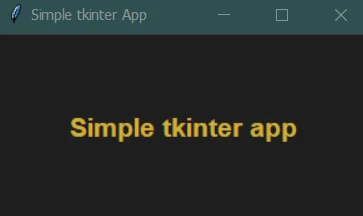
Step 1: Convert the script to a zipapp (.pyzw)
1-Create a directory and name it simpleGuiApp.
2-Copy your script into that directory and rename it exactly to __main__.py (using two underscores on each side).
3- For Gui apps (like our Tkinter script), run this command from the command prompt:
python -m zipapp simpleGuiApp -o simpleGuiApp.pyzw --python "pyw.exe" --compress
(For command-line apps, use "py.exe" or "python.exe" instead of "pyw.exe").
Run your newly created zipapp with this command:
pyw simpleGuiApp.pyzw
Step 2: Convert your zipapp to executable
Before you can convert your zipapp to executable, you need to grab the default Windows EXE stub files. You can find them inside your local Python installation directory at the following path : Lib\site-packages\pip\_vendor\distlib.
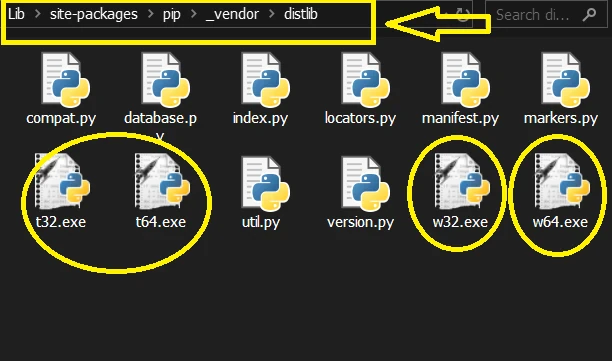
Inside, you will find:
t32.exe & t64.exe : stubs for console apps (32bit and 64bit architectures).
w32.exe & w64.exe : stubs for gui apps (32bit and 64bit architectures).
Copy the appropriate stub (e.g., w64.exe for a 64-bit GUI app) into your working directory, and run the following command to merge them:
copy /b w64.exe + simpleGuiApp.pyzw simpleGuiApp.exe
simpleGuiApp.exe is your executable file! You no longer need the simpleGuiApp.pyzw or w64.exe files to run it. You can even open this generated.exe in file compression applications (like WinRAR or 7-Zip) to view or edit its contents.
If you want to create a console exeuctable use t64.exe stub for 64 bit systems or t32.exe for 32 bit systems. (Why don’t you try to run the generated .exe on linux using local python? - no Wine, no VMs)
* Keep in mind: These lightweight executables completely depend on a local installation of Python being present on the target machine.
How to add icons to your executables:
Adding a custom icon is straightforward using rcedit, a command-line utility that can modify executable resources.
Download the latest rcedit.exe release from GitHub.
To apply the icon properly, you must inject it into the stub file before appending your zipapp. Run these two steps in order:
rcedit.exe w64.exe --set-icon YourAppIcon.ico
copy /b w64.exe + simpleGuiApp.pyzw simpleGuiApp.exe
A final word
Whether you choose the robust, all-inclusive bundling of PyInstaller or the ultra-lightweight efficiency of zipapp with binary stubs, you are effectively solving the same problem: bridging the gap between Python’s interpreted nature and the seamless desktop experience users expect. By mastering both approaches, you gain complete control over your software distribution—allowing you to choose the exact balance of performance, portability, and file size required for your desktop utilities.