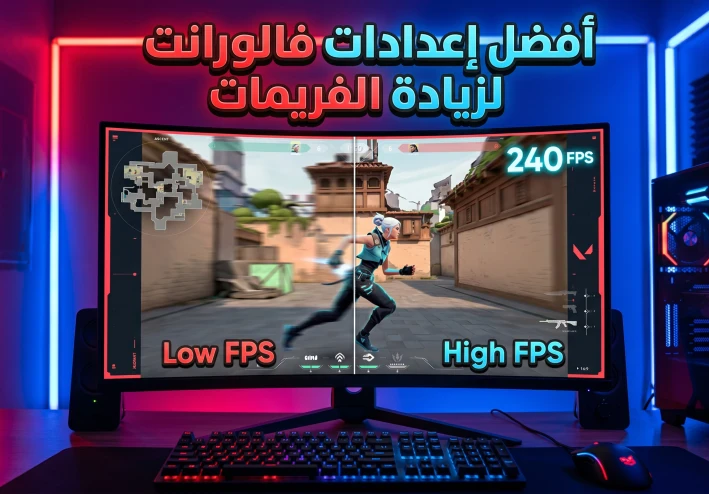
Best Valorant Settings For More FPS And Less Lag 2026
Best Valorant Settings To Increase FPS And Reduce Lag On Mid-Range PCs 2026![]()
Many Valorant players suffer from lag, stuttering, and FPS drops during gameplay, especially in intense fights or while using abilities. That is why many players search for the best settings to improve performance and achieve smoother gameplay.
In this article, we will go over the best Valorant settings for mid-range and low-end PCs, along with important Windows optimizations and useful tips to boost FPS and reduce lag.
Why Is FPS Important In Valorant?
The higher your FPS, the smoother the gameplay becomes. Higher frame rates also improve responsiveness and aiming accuracy during competitive matches.
Professional Valorant players usually focus on performance-oriented settings instead of high graphics quality because stable FPS is more important for competitive gaming.
If you own a 144Hz or 240Hz monitor, you will need high FPS to fully benefit from your screen refresh rate.
Best Graphics Settings For Valorant
These settings are recommended for most mid-range PCs:
General Video Settings
Display Mode: Fullscreen
Resolution: Native Resolution
Limit FPS on Battery: Off
Limit FPS in Menus: On
Max FPS Always: Depends on your PC performance
Graphics Quality Settings
Material Quality: Low
Texture Quality: Low
Detail Quality: Low
UI Quality: Low
Vignette: Off
VSync: Off
Anti-Aliasing: None
Improve Clarity: On
Bloom: Off
Distortion: Off
Cast Shadows: Off
These settings reduce GPU and CPU load, resulting in more stable gameplay and higher FPS.
Best Windows Settings To Reduce Lag
There are several Windows optimizations that can significantly improve gaming performance.
Enable High Performance Mode
Go to Windows Power Options and select:
High Performance
This allows your CPU and GPU to run at maximum performance while gaming.
Close Background Applications
Before launching Valorant, close unnecessary programs such as:
Web browsers
Download managers
Heavy recording software
This helps free up RAM and CPU resources for better performance.
Does RAM Affect Valorant Performance?
Yes, Valorant depends heavily on RAM and CPU stability. It is recommended to use:
At least 16GB RAM
SSD instead of HDD
This reduces loading times and prevents stuttering during matches.
Best NVIDIA And AMD Settings For Valorant
If you use an NVIDIA or AMD graphics card, enable maximum performance mode from your GPU control panel.
It is also recommended to keep your graphics drivers updated for the best stability and performance.
Do Driver Updates Improve Valorant Performance?
Many players ignore GPU driver updates even though they can noticeably improve game performance. Graphics card companies release updates regularly to improve game optimization and fix technical issues.
Some updates specifically solve FPS drops and stuttering problems experienced by players.
Why Cleaning Your PC Improves Performance
Over time, temporary Windows files accumulate and may affect system performance while gaming. It is recommended to clean temporary files and maintain enough free storage space.
You should also make sure your game drive has enough free space because a full drive may cause slow loading times and lag.
Does The CPU Affect FPS?
Yes, the CPU is one of the most important components affecting Valorant performance. Since the game relies heavily on processor power, a stronger CPU can provide more stable FPS and smoother gameplay.
Running too many applications in the background may also reduce CPU performance during gaming.
Additional Tips To Increase FPS
Install the game on an SSD
Keep your drivers updated
Clean temporary Windows files
Avoid fake FPS Boost software
Keep your PC temperatures low
Close unnecessary apps while gaming
Conclusion
Valorant can run smoothly even on mid-range PCs if you use the right settings and optimizations. Try the settings mentioned above and you should notice better FPS stability and reduced lag during gameplay.
If you are interested in more gaming and PC optimization guides, make sure to check out related articles for more useful tips.